CONTENT MIGRATED TO THIS PAGE:

  • email
  • gmail email set-up
  • android email set-up
  • android htc email set-up
  • iphone email set-up
  • ipad email set-up
  • samsung phone & tablet email set-up
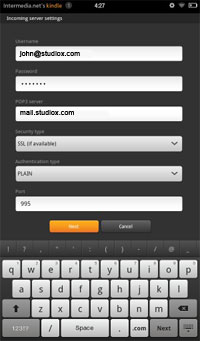
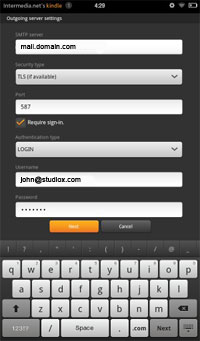
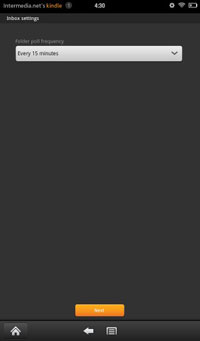
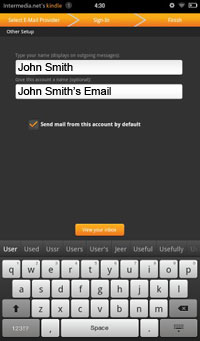
  • kindle email set-up
  • nokia lumia email set-up
  • out of office messages

START CONTENT:

email support

What programs can be used to access e-mail?
All POP clients can be used: pine, elm, Netscape mail, Thunderbird, Outlook, etc. You can use any program which downloads the files from our server onto your computer. You can use mail user agents which run on our servers (such as pine), with a special configuration. You may also use IMAP programs.

Do you offer webmail?
Yes, you can login to your webmail account by visiting mail.studiox.com

How do I login to my email account

For Webmail

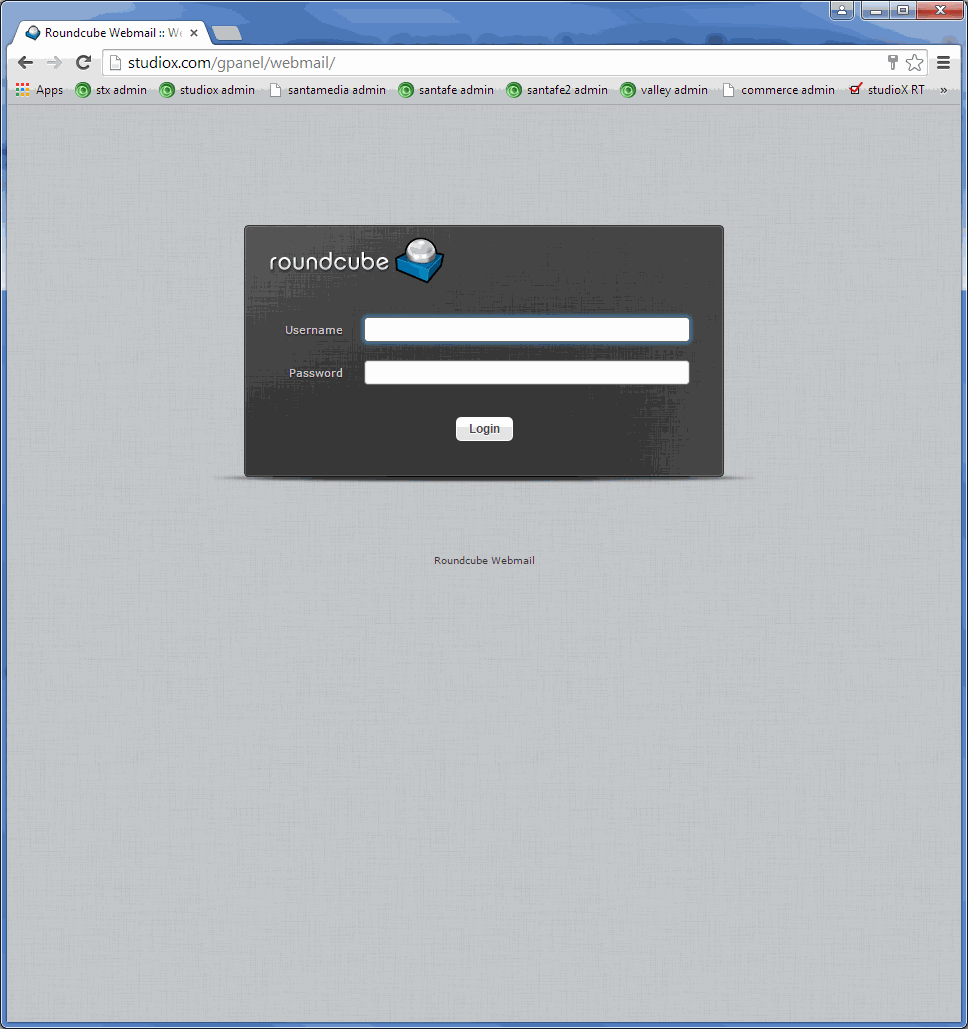
  1. Log in using your browser by visiting (mail.studiox.com)
  2. Your username is your FULL email address (ie. youremail@yourdomain.com)
  3. Your password is your password.

INCOMING mail server

  1. Your incoming mail server is studiox.nmsrv.com
  2. Your username is your FULL email address (ie. youremail@yourdomain.com)
  3. Your password is your password

OUTGOING mail server (SMTP Server REQUIRES authentication)

  1. Your outgoing mail server is studiox.nmsrv.com
  2. Your username is your FULL email address (ie. youremail@yourdomain.com)
  3. Your password is your password

Be sure that your security and authentication settings are set to use your login settings.
DO NOT check the SPA options.

Ports
Typically entering a port is unnecessary, your email program should do that for you but here are the defaults for each type of account.

  • Incoming
    POP : 110 (or 995 with TLS or SSL)
    IMAP: 143 (or 993 with TLS or SSL)
  • Outgoing
    SMTP: 587 (regardless of TLS/SSL or not)
    (you can try using Port 25, however, it is not nearly as reliable as using port 587)

Security
Depending on your device select the best security option available in this order:
TLS – Accept all certificates
TLS – (you may need to ‘Always Trust’ the cert)
SSL – (you may need to ‘Always Trust’ the cert)

What is an email alias and is it unlimited?
An e-mail alias is an email address that will accept email for a real pop or IMAP account that goes by another name. An alias can not be logged into directly. You must login to the lead account.

For example, you may want to have an alias that receives mail sent to youremail@yourdomain.com but actually have it delivered to admin@studiox.com. Once the alias is established, you retrieve the emails sent to youremail@yourdomain.com, by logging in to your admin account.

Aliases are unlimited–get as many as you need for no extra charge!

Is there a limit to how many email accounts can be forwarded?
The only limit is the quantity of email accounts your current plan has.

May I promote my web site with bulk email?
Spamming is in violation of our service agreement. There are legal and ethical issues involved in mass mailing of unsolicited email. Any user of our services who has sent a large number of unsolicited email will have their account closed.

Common Issues
A large number of email issues can be solved by checking a few things first.

  1. Make sure you are connected to the internet. If you can’t visit a web page on the internet, you won’t be able to access your email either. This is the number one resolution to most support requests.
  2. Make sure your username is set to your full email address.
    G00D: webmaster@studiox.com
    BAD : webmaster
  3. Check your email accounts security settings. SPA should not be enabled. Refer to and verify the ports above are being used. If you are able to receive email, but unable to send, make sure you are using Port 587 for your outgoing (SMTP) mail server and ensure that you are authenticating your connection to the outgoing (SMTP) server with the same credentials as your incoming mail server.

gmail setup

Step 1
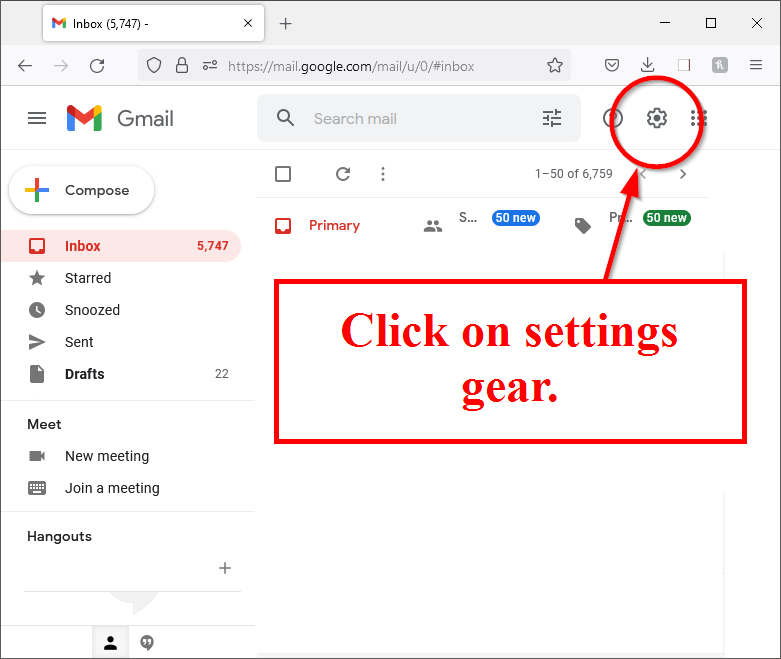
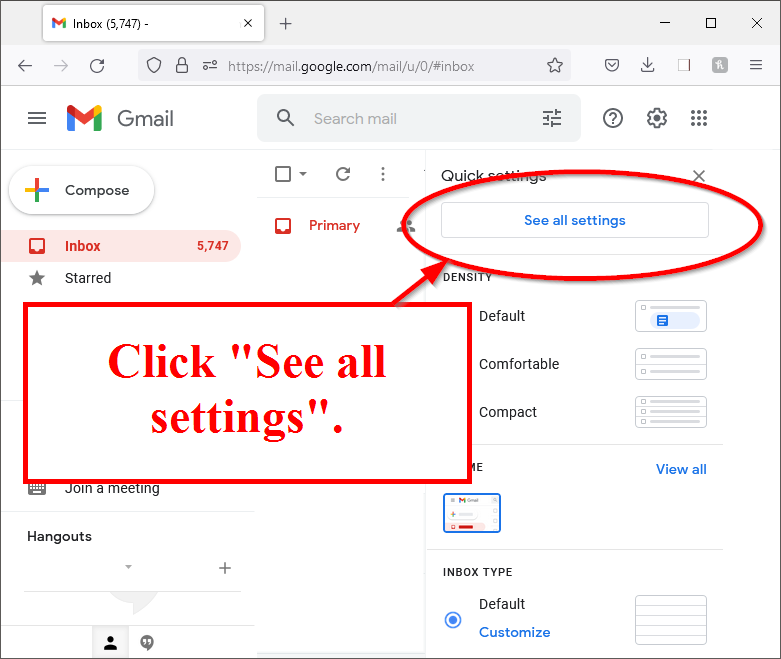
From Gmail inbox, click on settings gear.

Step 2

Click "See all settings" button.

Step 3

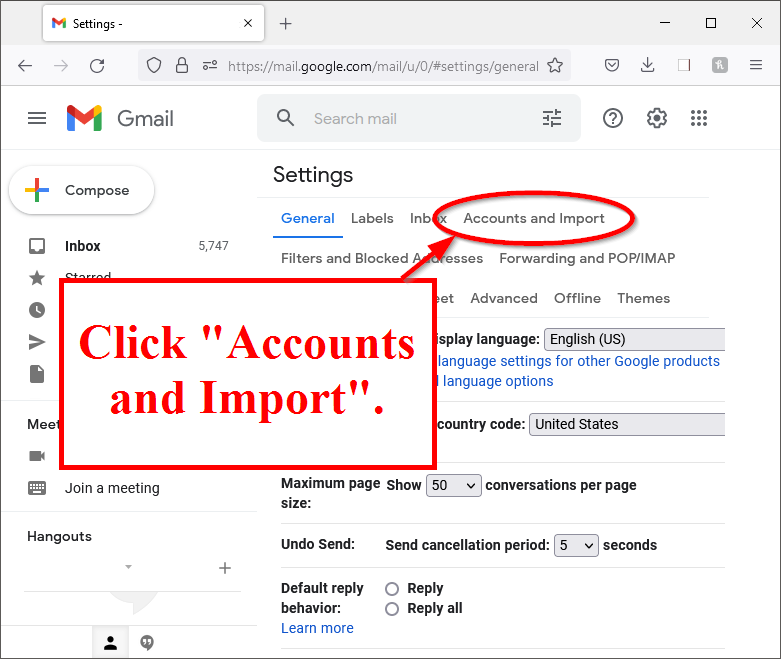
Click "Accounts and Import" tab.

Step 4

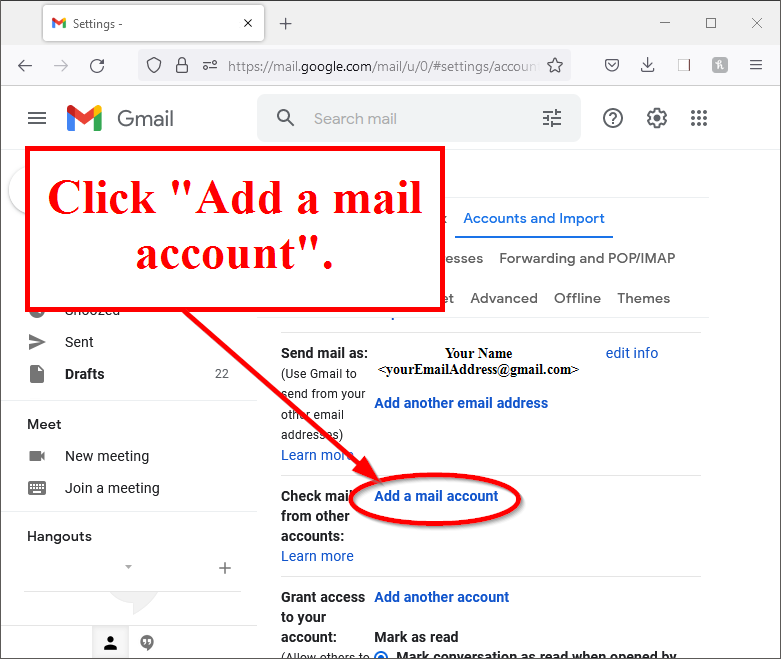
Click "Add a mail account" link.

Step 5

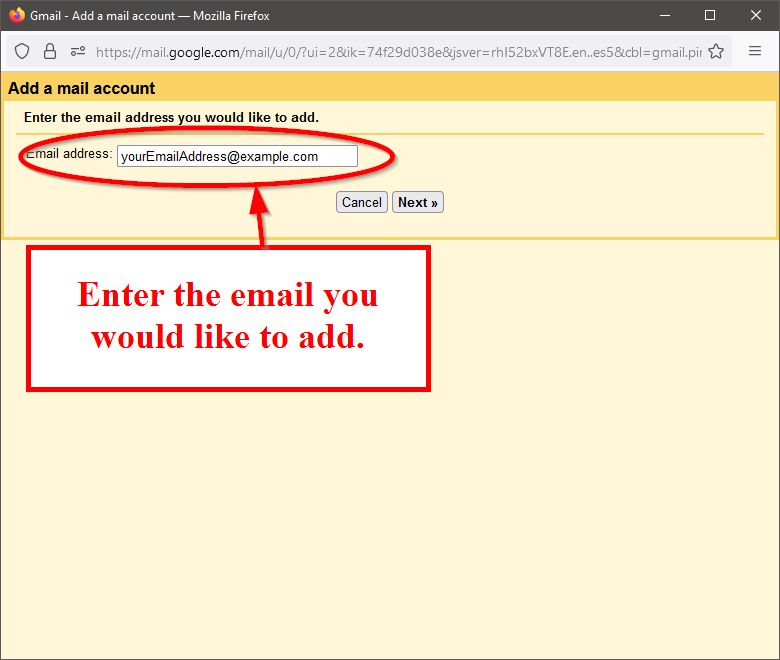
Enter the email you would like to add in email address input field.

Step 6

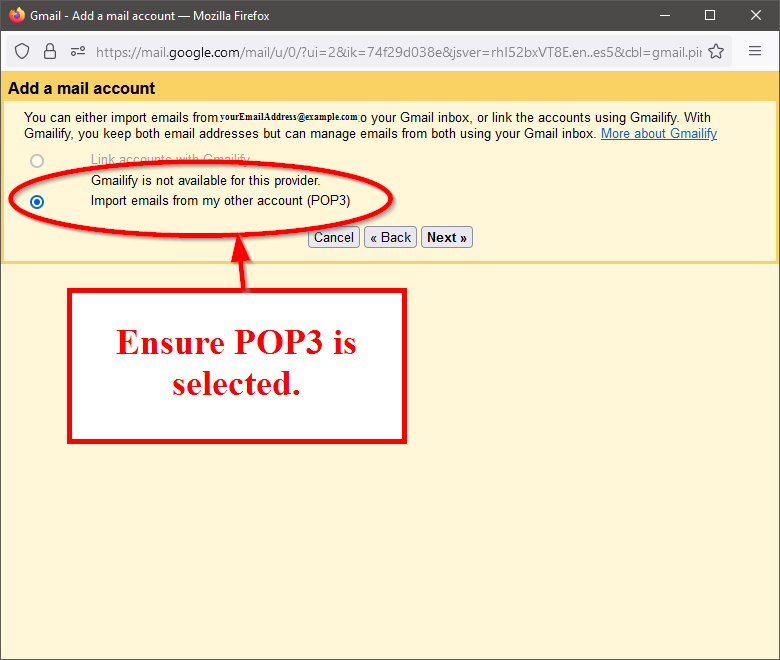
Ensure POP3 option is selected.

Step 7

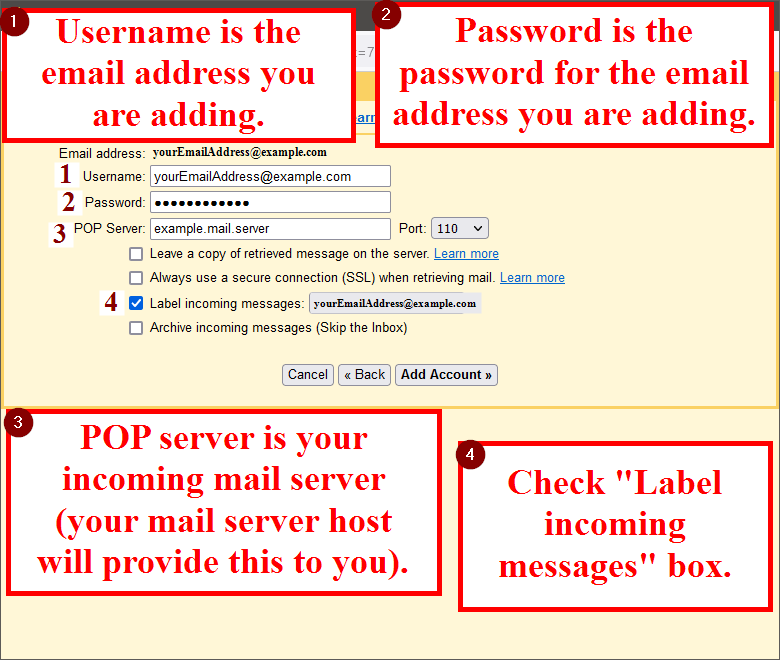
Step 1: Enter Username as the email address you are adding. Step 2: Enter Password as the password of the email address you are adding. Step 3: Enter POP Server as your incoming mail server (your mail server host will provide this to you). Step 4: Check the "Label incoming messages" box.

Step 8

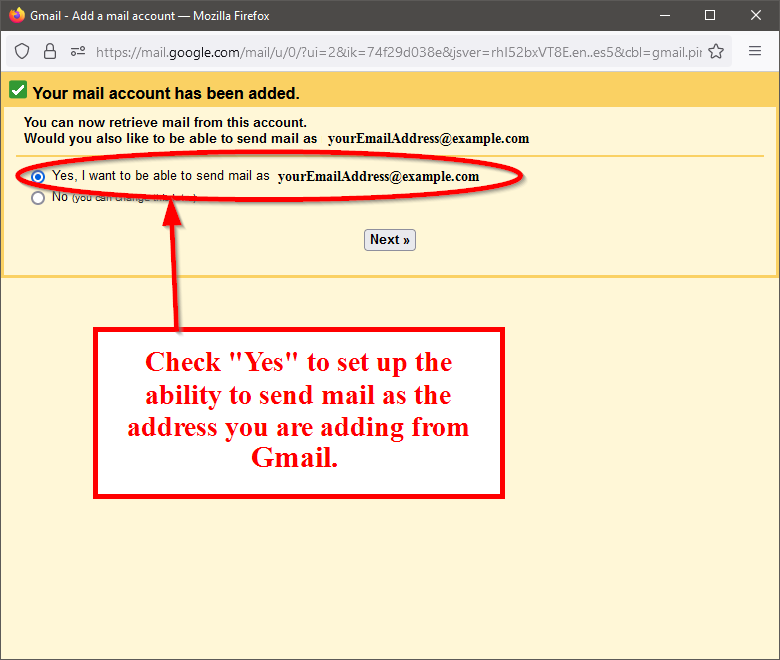
Check "Yes" option to set up the ability to send mail as the address you are adding from Gmail.

Step 9

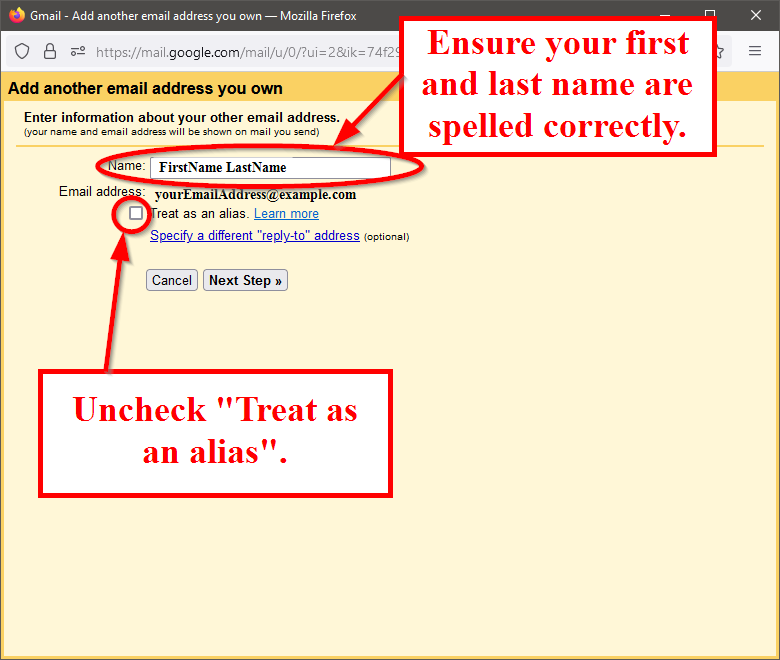
Step 1: Ensure you first and last name are spelled correctly. Step 2: Uncheck "Treat as an alias" option.

Step 10

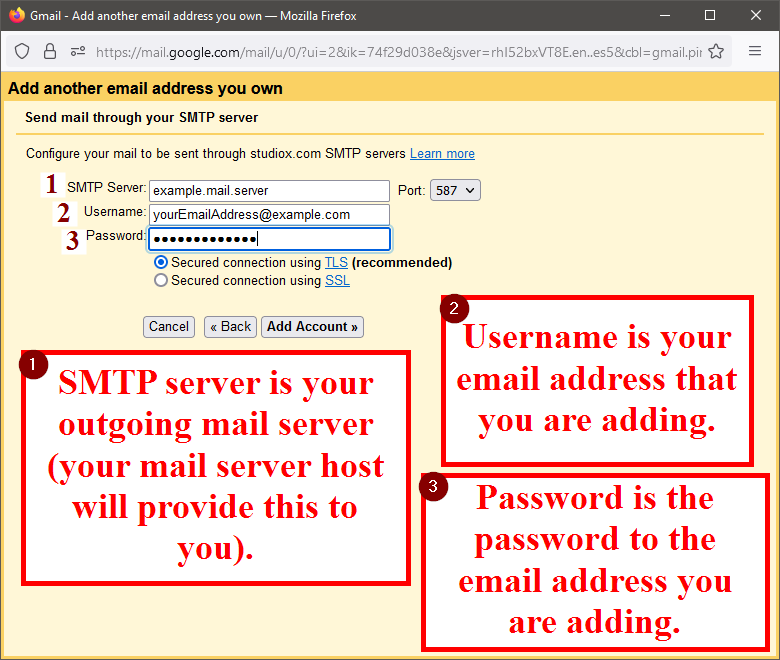
Step 1: Enter the SMTP Server as your outgoing mail server (your mail server host will provide this to you). Step 2: Enter your Username as your email address that you are adding. Step 3: Enter your Password as the password to the email address you are adding.

Step 11

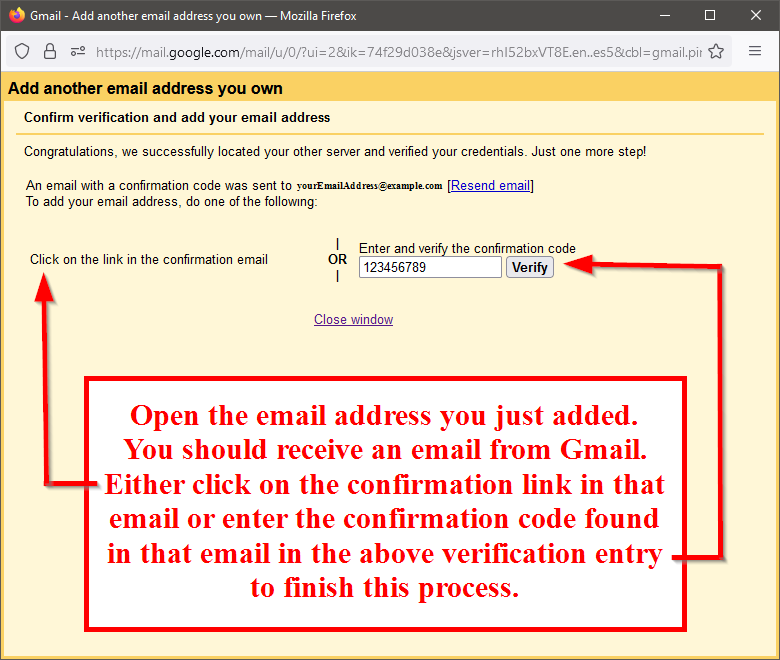
Open the email address you just added. You should receive an email from Gmail. Either click on the confirmation link in that email or enter the confirmation code found in that email in the above verification entry to finish this process.

android email setup

Step 1

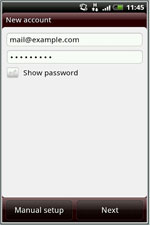
Enter email and password of email address you are adding.

Step 2

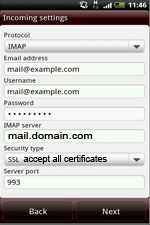
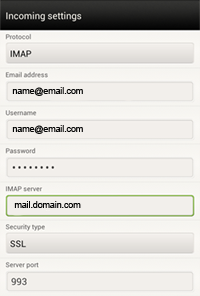
Enter your IMAP server to the IMAP server input field (this will be provided by your email host provider). Set your security type to "SSL accept all certificates".

Step 3

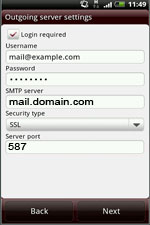
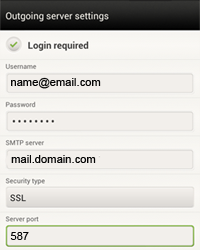
Enter your SMTP server in the SMTP server input field (this will be provided by your email host provider). Ensure the server port is 587.

Step 4

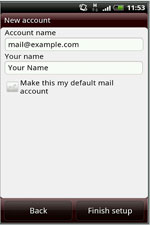
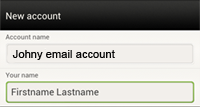
Enter your account name as the email address you are adding. Your name will be your first and last name.

android htc email setup

Step 1

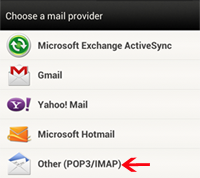
Select "Other (POP3/IMAP)" option as your mail provider.

Step 2

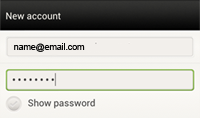
Enter the email address of the email you are adding. Enter the password of the email you are adding.

Step 3

Fill "Email address" field with the email you are adding. Fill "Username" field with the email address you are adding. Fill "Password" field with password of the email address you are adding. Fill the "IMAP server" field with your IMAP server name (this will be provided by your email host provider).

Step 4

Fill "Username" field with the email address you are adding. Fill "Password" field with password of the email address you are adding. Fill the "SMTP server" field with your SMTP server name (this will be provided by your email host provider). Ensure the "Server port" field is 587.

Step 5

Fill "Your name" field with your first and last name.

iphone email setup

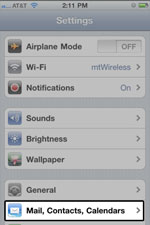
Step 1

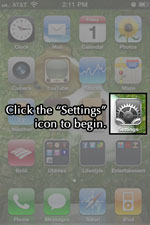
Click on "Settings" icon to begin.

Step 2

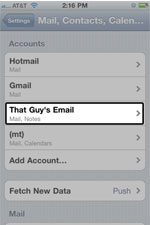
Select "Mail, Contacts, Calendars".

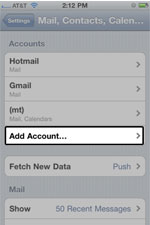
Step 3

Select "Add Account...".

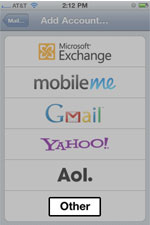
Step 4

Select "Other".

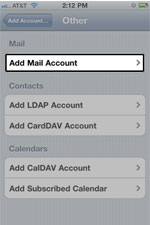
Step 5

Select "Add Mail Account".

Step 6

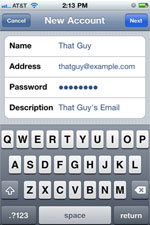
Fill "Name" field with your first and last name. Fill "Address" field with the email address you are adding. Fill "Password" field with the password of the email address you are adding. Fill "Description" with your own description of the email.

Step 7

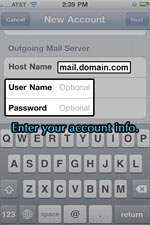
Fill "Host Name" field with your outgoing mail server name (this will be provided by your email host provider). Fill "User Name" field with the email address you are adding. Fill "Password" field with the password of the email address you are adding.

Step 8

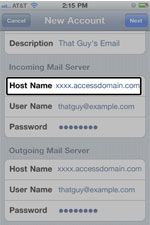
Fill "Host Name" field with your incoming mail server name (this will be provided by your email host provider).

Step 9

Your email address is now successfully added.

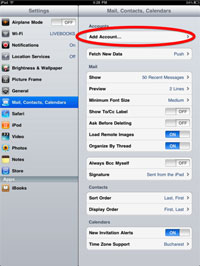
ipad email setup

Step 1

Select "Add Account...".

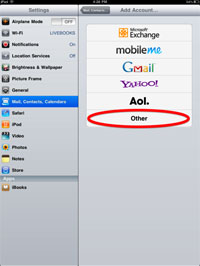
Step 2

Select "Other".

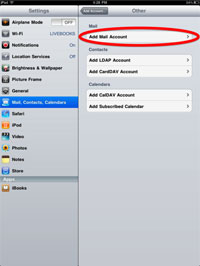
Step 3

Select "Add Mail Account".

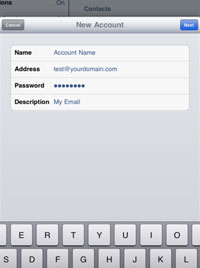
Step 4

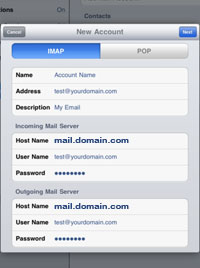
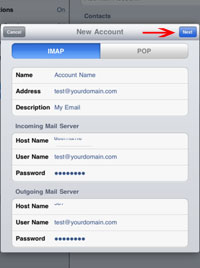
Fill "Name" field with your first and last name. Fill "Address" field with the email address you are adding. Fill "Password" field with the password of the email address you are adding. Fill "Description" with your own description of the email.

Step 5

Fill "Host Name" field with your incoming mail server name (this will be provided by your email host provider). Fill "User Name" field with the email address you are adding. Fill "Password" field with the password of the email address you are adding.

Step 6

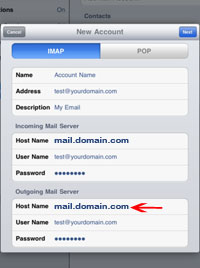
Fill "Host Name" field with your outgoing mail server name (this will be provided by your email host provider). Fill "User Name" field with the email address you are adding. Fill "Password" field with the password of the email address you are adding.

Step 7

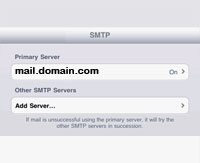
Fill "Primary Server" field with your SMTP server name (this will be provided by your email host provider).

Step 8

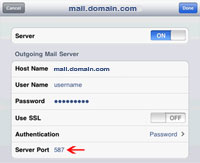
Ensure the "Server Port" field is 587.

Step 9

Select "Next".

Step 10

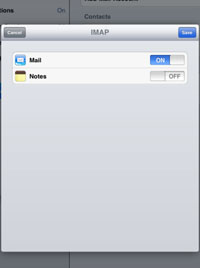
Ensure "Mail" option is "ON".

samsung phone & tablet email setup

Step 1
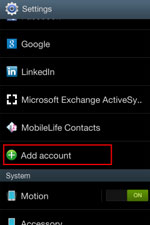
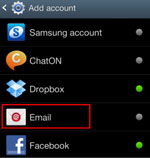
Select "Add account".

Step 2

Select "Email".

Step 3

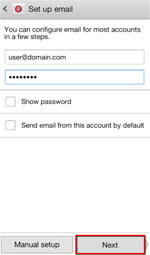
Enter the email address you are adding. Enter the password for the email address you are adding. Select "Next".

Step 4

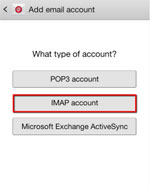
Select "IMAP account".

Step 5

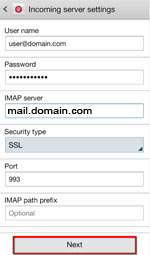
Fill "User Name" field with the email address you are adding. Fill "Password" field with the password of the email address you are adding. Fill "IMAP server" field with your incoming mail server name (this will be provided by your email host provider). Select "Next".

Step 6

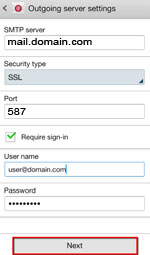
Fill "SMTP server" field with your outgoing mail server name (this will be provided by your email host provider). Ensure "Port" field is 587. Fill "User Name" field with the email address you are adding. Fill "Password" field with the password of the email address you are adding. Select "Next".

Step 7

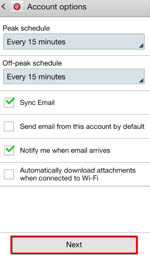
Select "Sync Email". Select "Notify me when email arrives". Select "Next".

Step 8

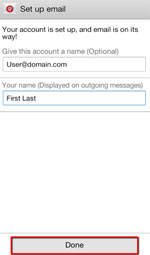
Fill "Give this account a name" field with the email address you are adding. Fill the "Your name" field with your first and last name. Select "Done".

samsung phone & tablet email setup

Step 1
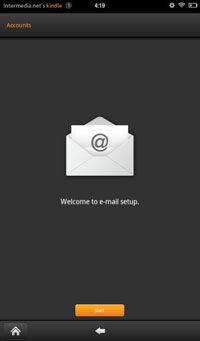
Select "Next".

Step 2

Select "Other".

Step 3

Enter your email address that you are adding. Enter the password for the email address you are adding.

Step 4

Select "POP3".

Step 5

Fill "User Name" field with the email address you are adding. Fill "Password" field with the password of the email address you are adding. Fill "POP3 Server" field with your incoming mail server name (this will be provided by your email host provider). Ensure "Port" field is 995.

Step 6

Fill "Give this account a name" field with the email address you are adding. Fill the "Your name" field with your first and last name. Select "Done".

Step 7

Fill "Give this account a name" field with the email address you are adding. Fill the "Your name" field with your first and last name. Select "Done".

Step 8

Fill "Give this account a name" field with the email address you are adding. Fill the "Your name" field with your first and last name. Select "Done".

samsung phone & tablet email setup

Step 1
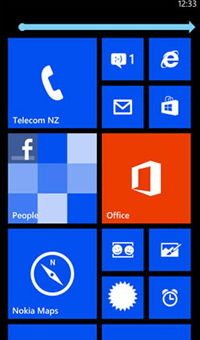
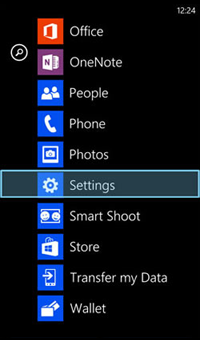
Navigate to application screen.

Step 2

Select "Settings".

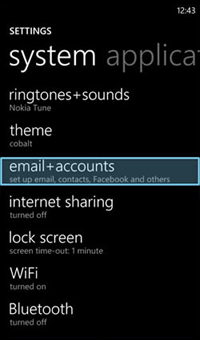
Step 3

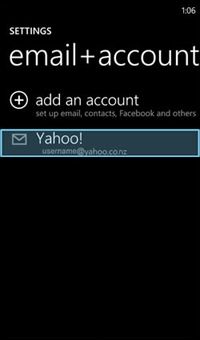
Select "email + accounts".

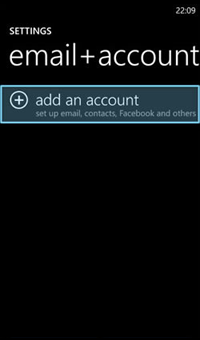
Step 4

Select "add an account".

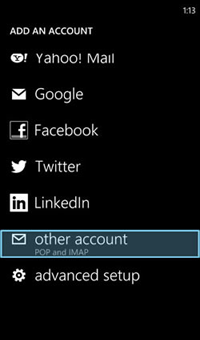
Step 5

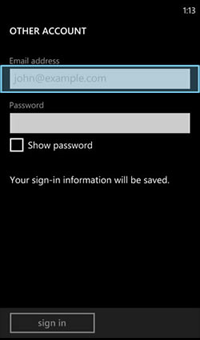
Select "other account".

Step 6

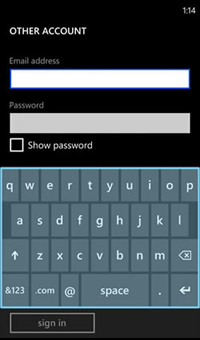
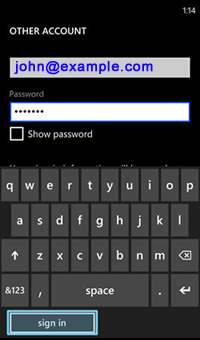
Fill "Email address" field with the email address you are adding.

Step 7

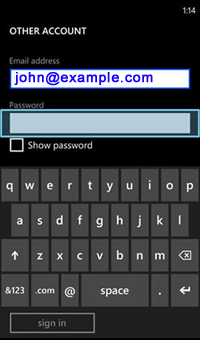
Fill "Email address" field with the email address you are adding.

Step 8

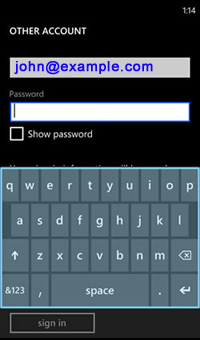
Fill "Password" field with the password of the email address you are adding.

Step 9

Fill "Password" field with the password of the email address you are adding.

Step 10

Select "sign in".

Step 11

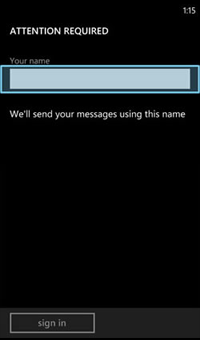
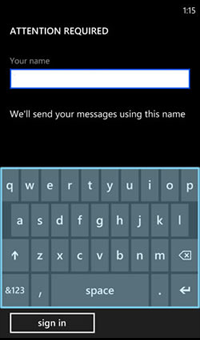
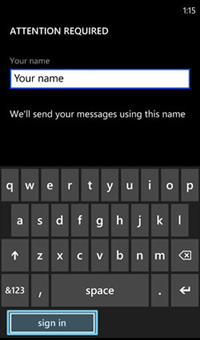
Fill "Your name" field with your first and last name.

Step 12

Fill "Your name" field with your first and last name.

Step 13

Select "sign in".

Step 14

You have successfully added your email address.

Step 15

Select home screen button on phone to exit.

out of office message setup

Step 1

Navigate to your email login. Login to your email account.

Step 2

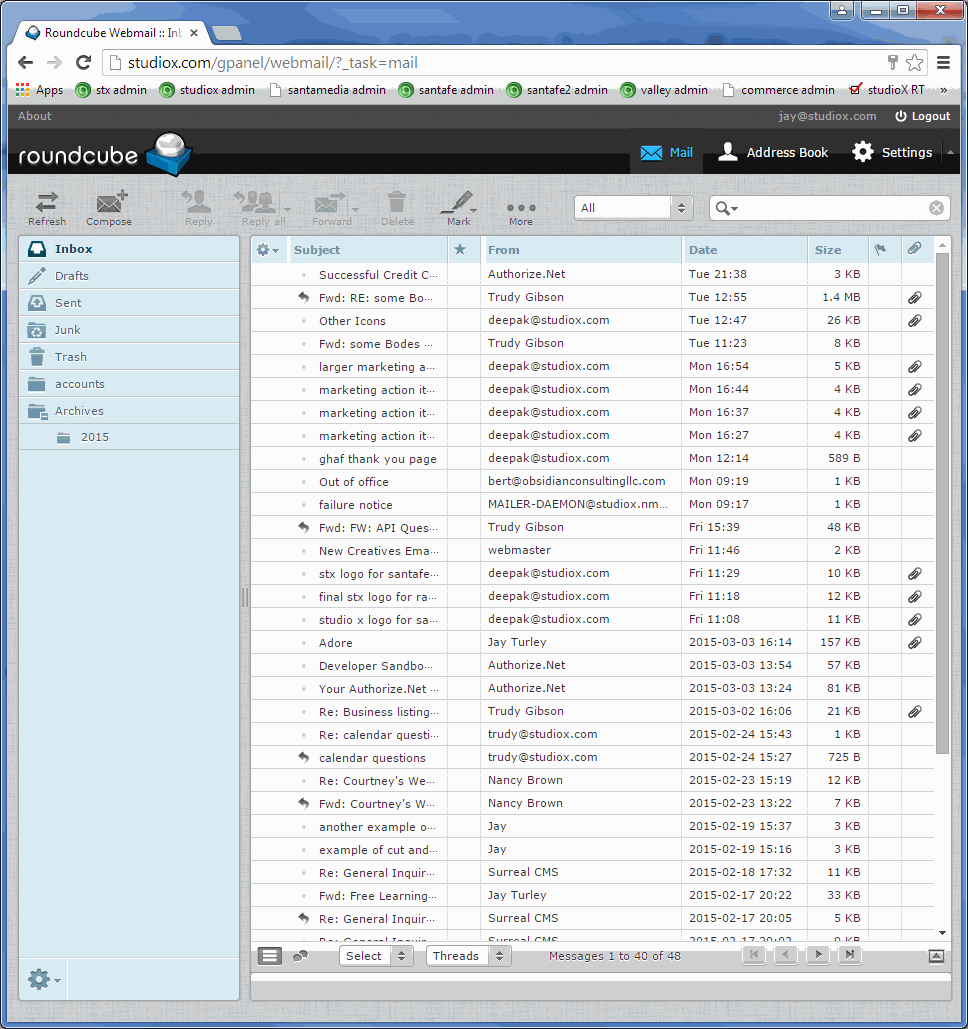
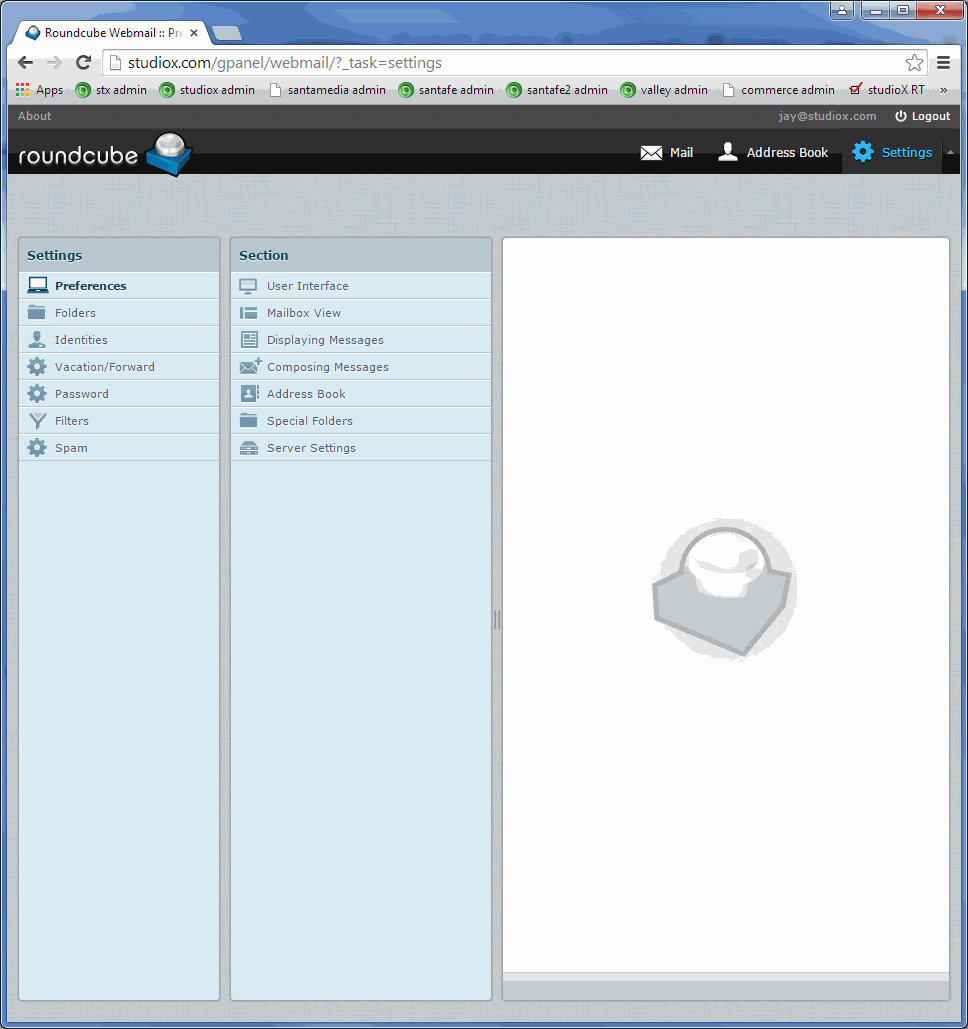
Select "Settings" in top right corner of window.

Step 3

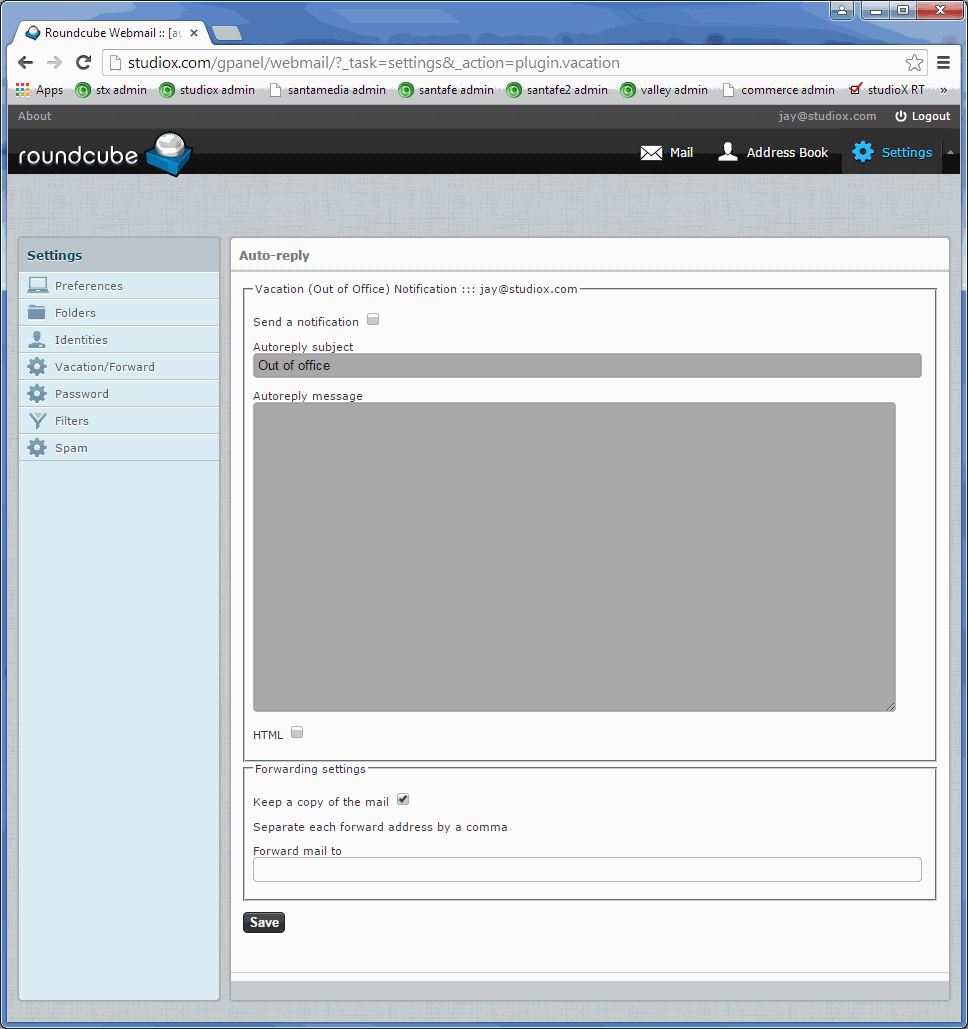
Select "Vacation/Forward".

Step 4

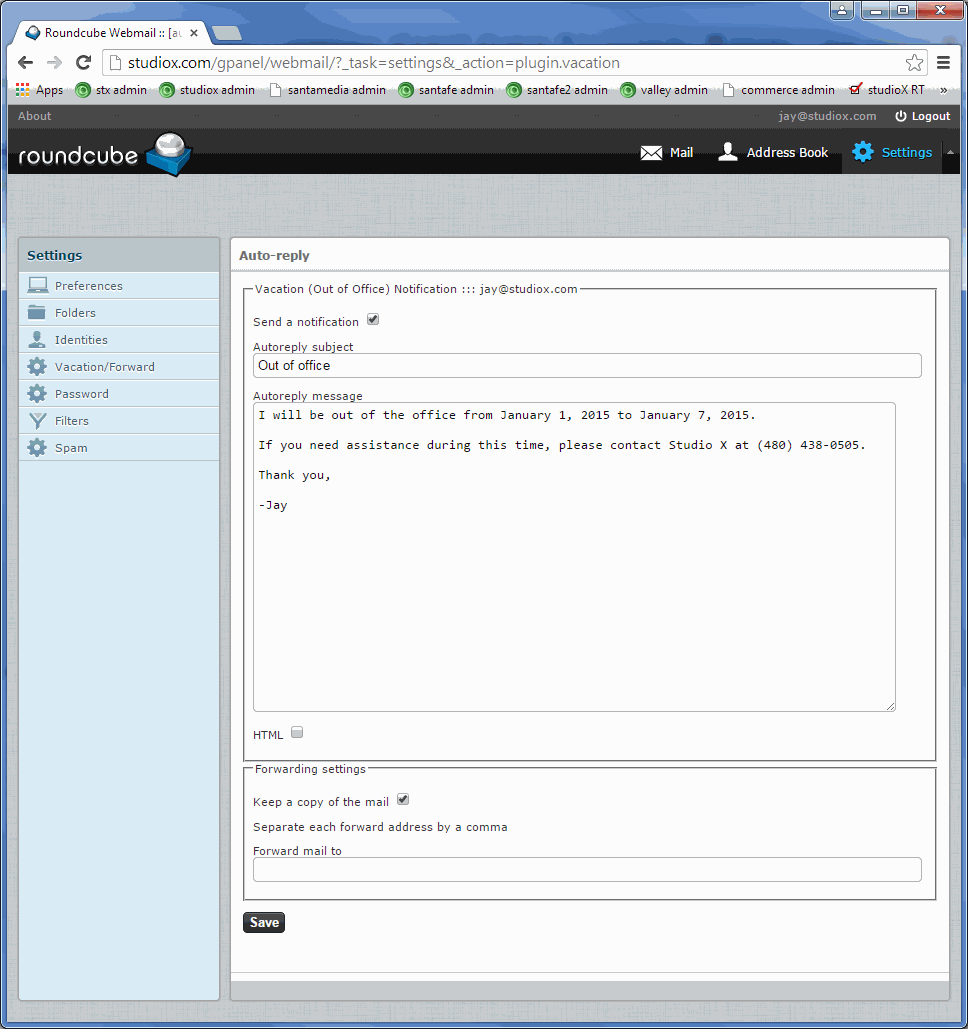
Select "Send a notification" check box.

Step 5

Enter desired subject and message in "Autoreply subject" and "Autoreply message".

Step 6

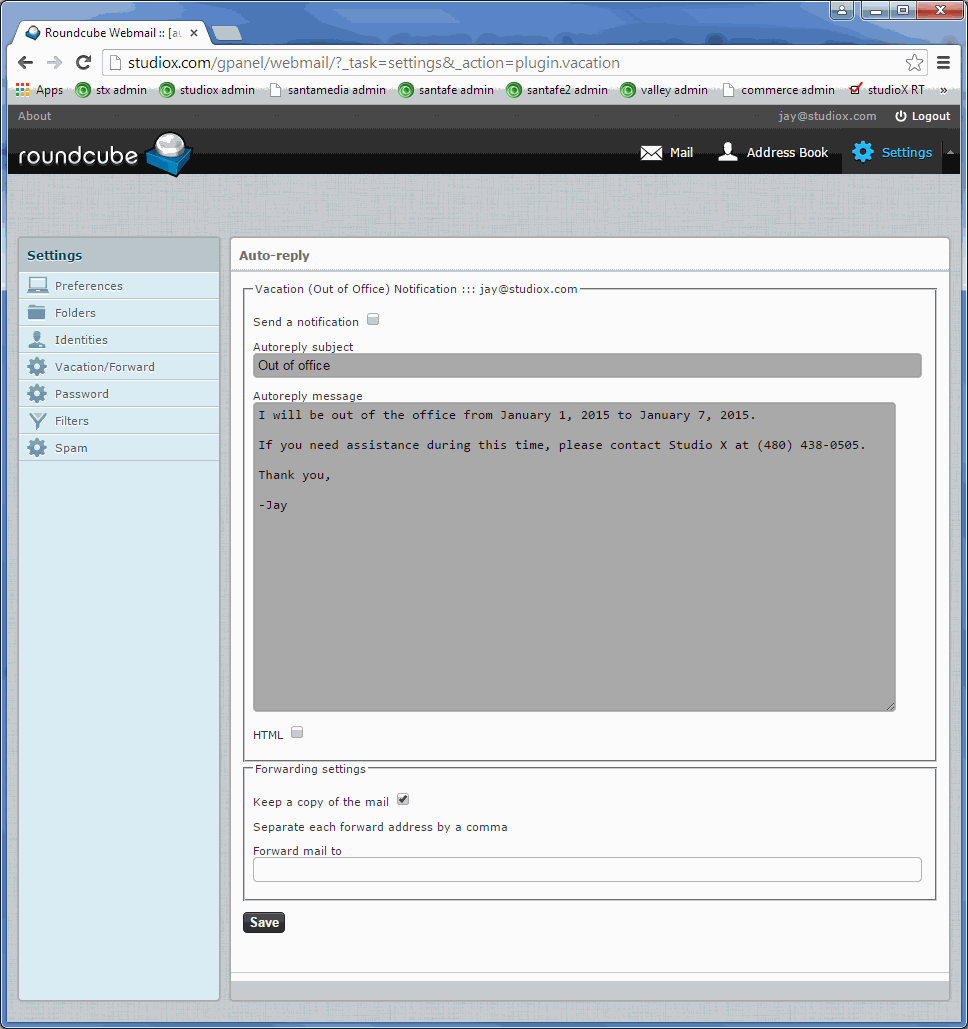
Uncheck "Send a notification" to turn off out of office message.